
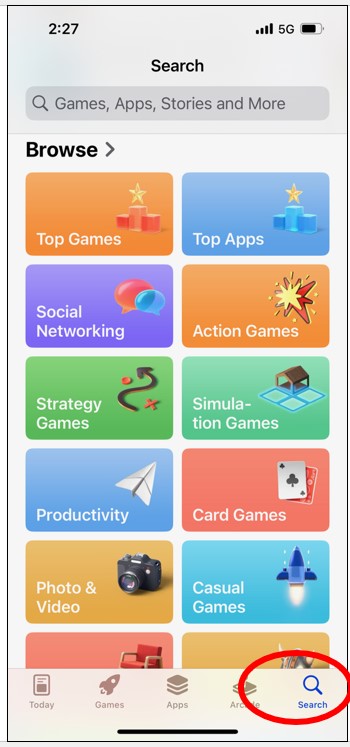
Step 1: Open the app store on your iPhone or iPad & select the search icon in the bottom right-hand corner
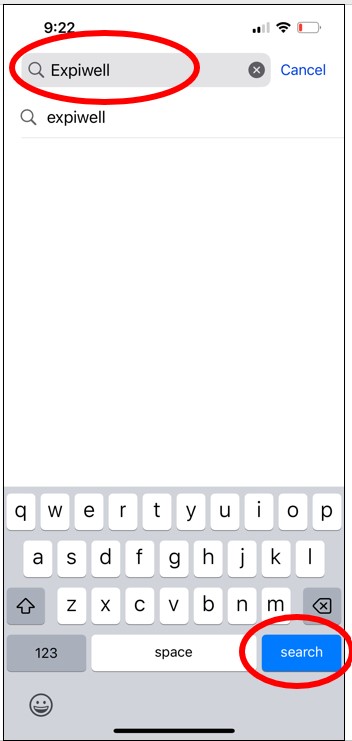
Step 2: Type “expiwell” into the search bar, and press search
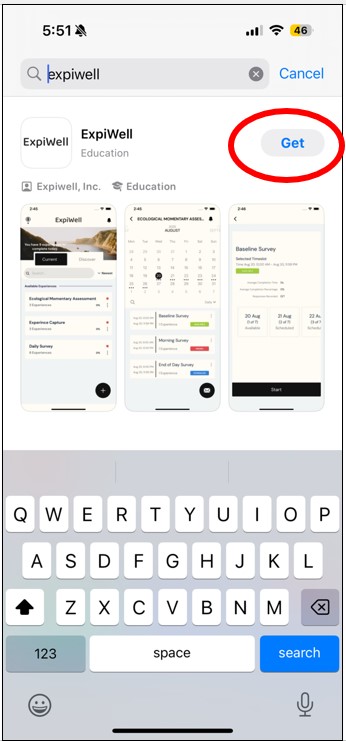
Step 3: The ExpiWell app should now show as the first result. Press get.
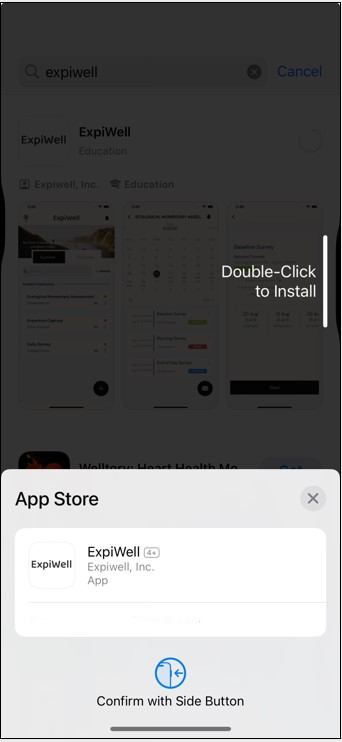
Step 4: You will then need to double press the lock button (press the button on the right side of your screen twice quickly) and confirm the download using FaceID or entering your Apple password.
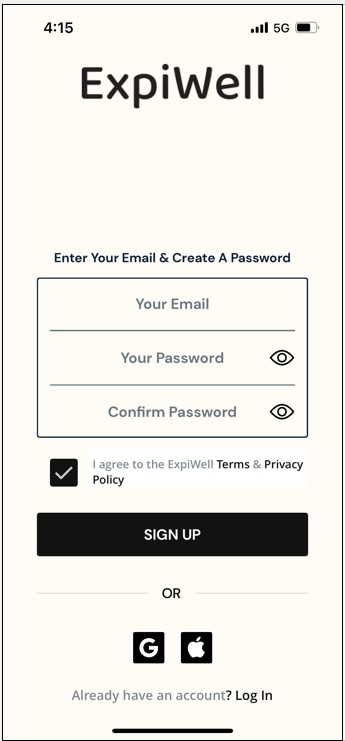
Step 5: Create an ExpiWell account. Enter your email address and create a password for the app. Tick to agree to the terms and privacy policy, and then press sign up.
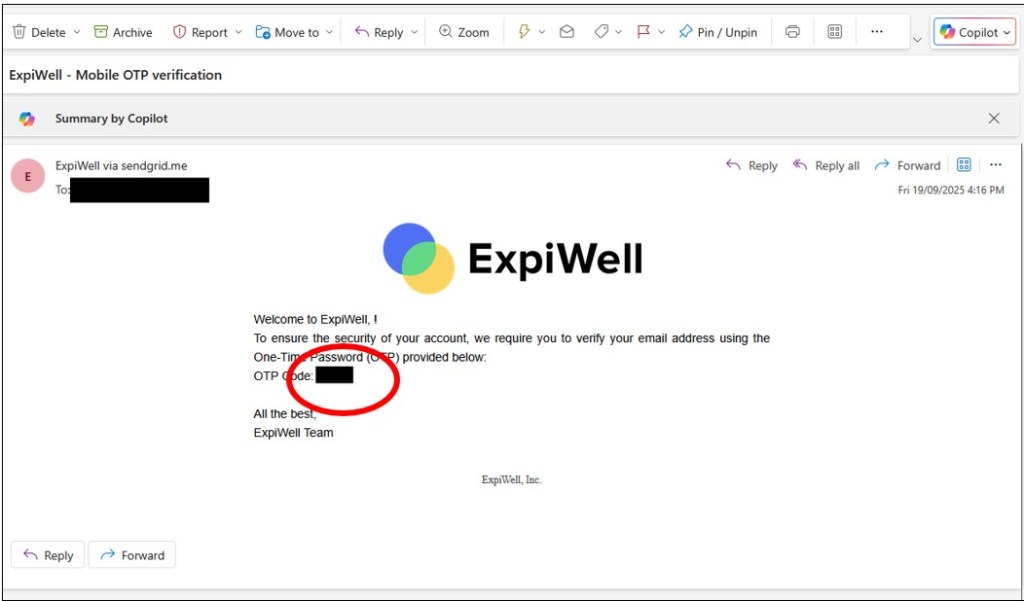
Step 6: You will now receive a one-time password (OTP) via email. This is a short string of numbers that will be sent to your email address. If you can’t see this email, make sure to check your junk/clutter folder. Enter the string of numbers into the ExpiWell app.
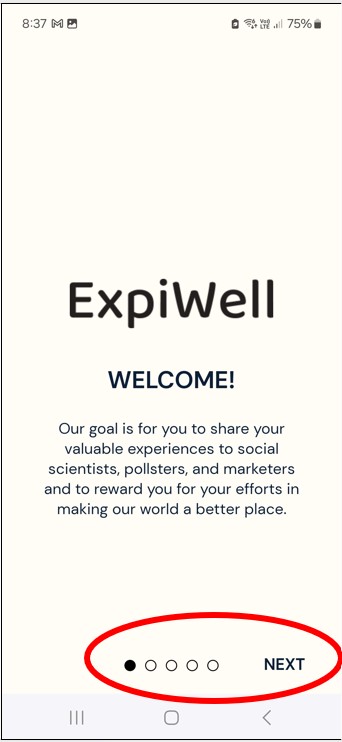
Step 7: You can now use the app! You will see a welcome screen that tells you about more about the app. Press next through the four screens.
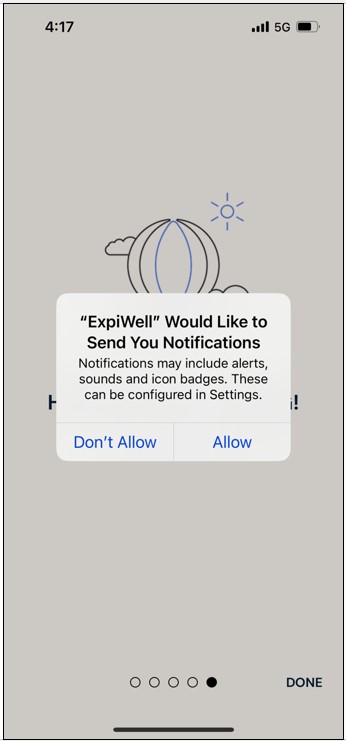
Step 8: When asked about notifications, make sure to press allow.
We need to be able to send you notifications through the app so you know when a task is ready to complete, and so you can complete it within the required time frame. If notifications are not allowed, you might miss out on some parts of the study.
Well done for downloading the app! The home screen on the app will look like this.
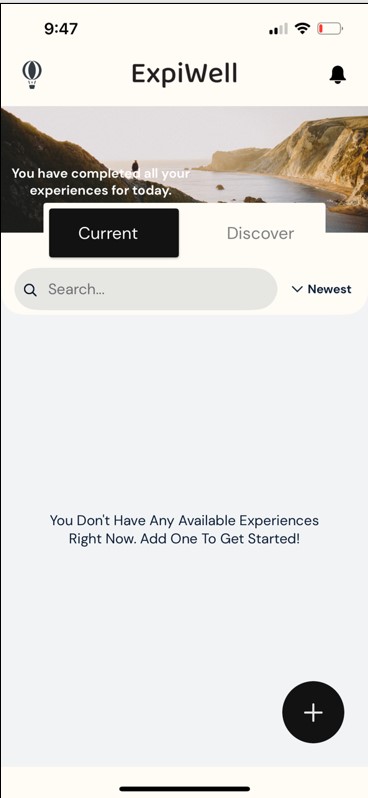
When you are Ready to begin the study, complete the following steps
Complete the next steps when you are ready to begin the study. Once you do this part, the first day’s survey will become accessible immediately and be available for 24 hours only. It is best to do these steps and then complete the day one survey straight away, so you don’t forget to do it. It will take 15-20 minutes.
Please note that the app calls all tasks and parts of the study “experiences”.
Step 9: The home screen of the app should look like this. Press the plus icon in the bottom right-hand corner of the app. A box will appear that asks you to enter an “experience access code”.
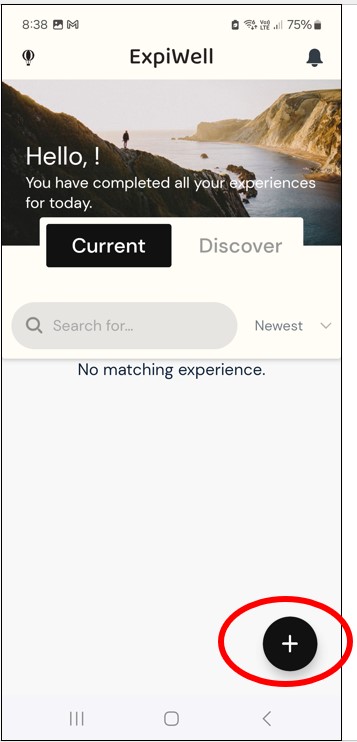
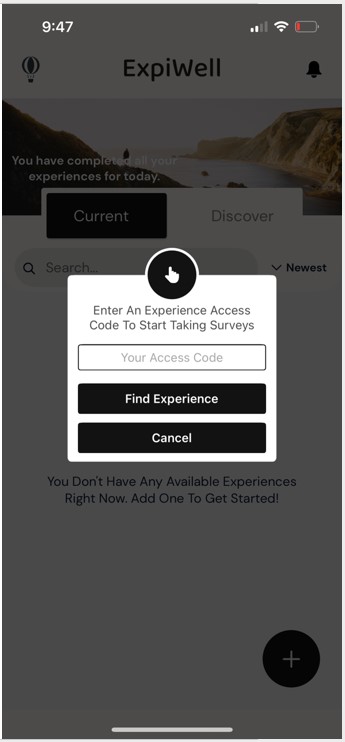
Step 10: Enter the code “vuwstudy” for this study. This is the only time you have to enter this code.
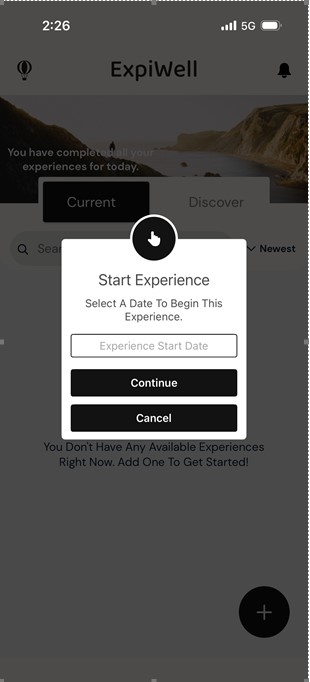
Step 11: Enter today’s date. This will make the first part of the study available to you immediately.
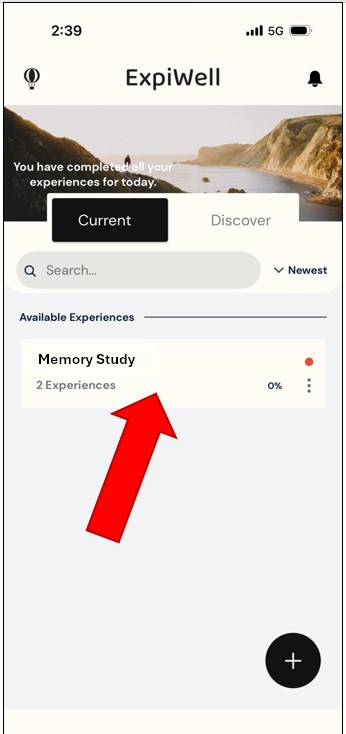
Step 12: The home page will have a white rectangle that will say “Memory Study.”
Press the white rectangle.
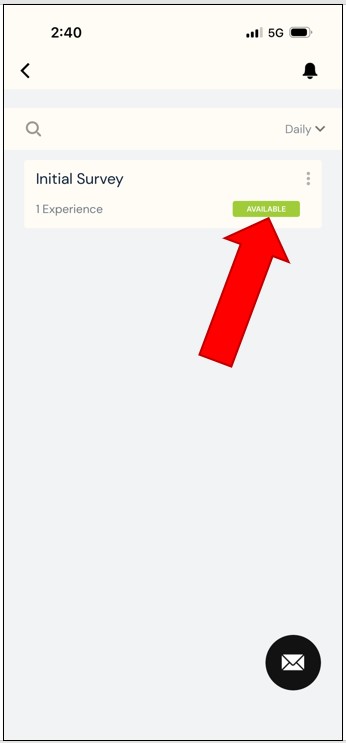
Step 13: If there is an available task, there will be another white rectangle with the task name. It will have a green box that says “available”.
Press the green button to start the task,
 ELM Home