
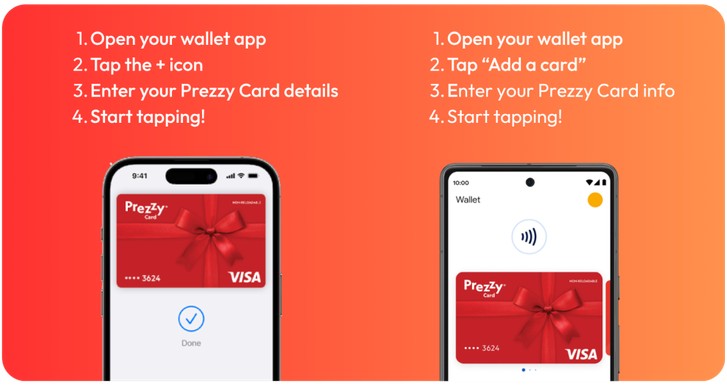
Even though it’s a virtual card (meaning there’s no physical version), you’re not limited to online shopping. Virtual Prezzy cards can be used in physical stores anywhere contactless payment (e.g., paywave) is accepted. To do this, you will need to put the prezzy card into a digital wallet on your phone. It might sound complicated at first, but we can walk you through it.
Here’s How to Add a Prezzy Card to Your Digital Wallet:
Make sure your Prezzy Card is activated and registered on www.prezzycard.co.nz
If you have an iPhone:
Add your Visa and Mastercard Prezzy card to Apple Pay (digital wallet that is built into iPhones)
- Open the Wallet app
- Tap the ‘+’ sign in the upper right corner
- Tap on ‘Add a debit or credit card’ and follow the prompts. Physical cards can be scanned using your iPhone camera, while virtual cards can be added by entering the card details shown in your PDF
- Card is now added and ready to use
If you have an Android phone:
Add your Prezzy card to Google Pay (digital wallet on Samsung, Oppo, Nokia, or most non-Apple phones)
- Open the Google Wallet
- Tap the ‘+’ sign in the bottom right corner
- Tap Payment Card > New credit or debit card
- Use the camera to capture your card info or enter it manually
- Card is now added and ready to use
You will have received a PDF with your virtual card details – everything you need to add it to your mobile wallet is right there. Once it’s set up, you’re good to go.


Leave a comment